
Live Timer on Your Lock Screen
See your workout timer countdown on the lock screen, Dynamic Island, and status bar without opening the app
While a workout timer is running, Crimpd shows the current phase countdown outside the app — on your lock screen, in the Dynamic Island (iOS), or in the status bar (Android). You can check your remaining rest or work time without unlocking your phone or switching apps.
The live timer mirrors the in-app timer: the phase cue (GO, REST, GET READY, or PAUSED), the current set, what comes next, and a live countdown. Audio cues continue to come from the app itself — the live timer is silent.
Note: The live timer is a display only. Dismissing or hiding it never stops your workout timer or its audio cues.
Apple (iOS) Users
The live timer uses iOS Live Activities and requires iOS 16.2 or later.
When you start a workout timer, the Live Activity appears automatically:
- Lock screen — a card with the exercise name, phase cue, set counter, what's next, the countdown, and a per-set progress bar.
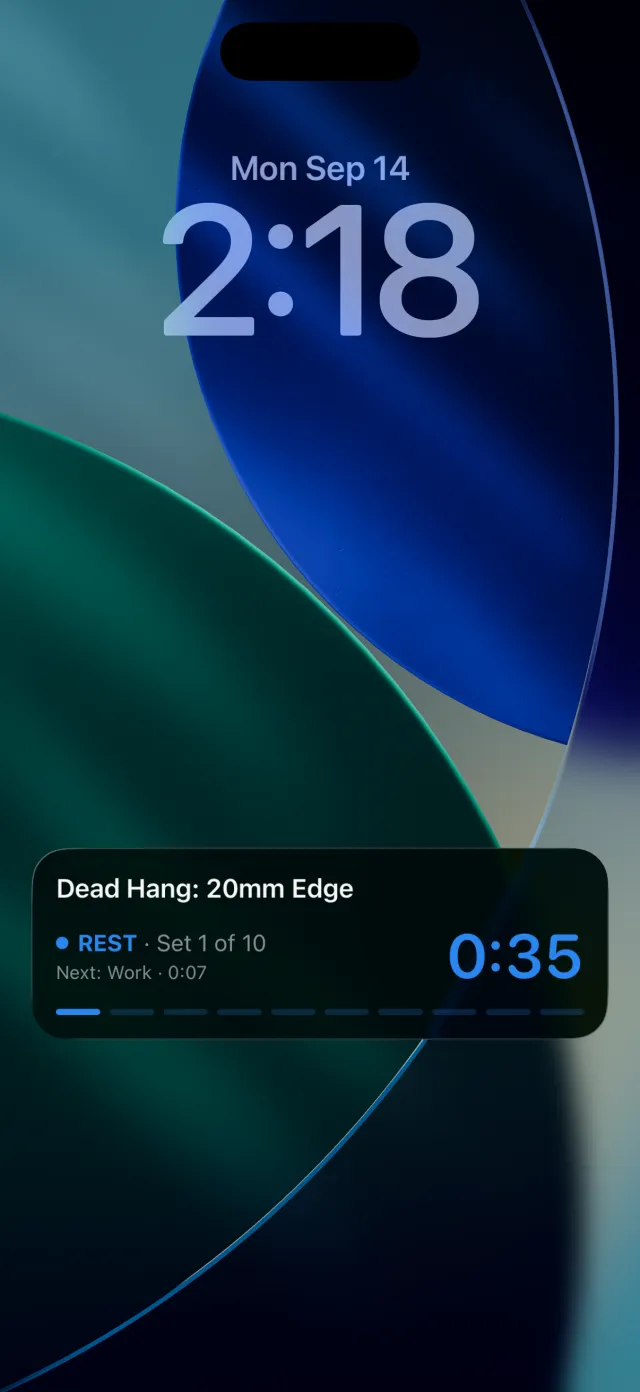
- Dynamic Island — on iPhone models with the Dynamic Island, a compact view shows the set counter and countdown while you use other apps. Press and hold the island to expand the full card.
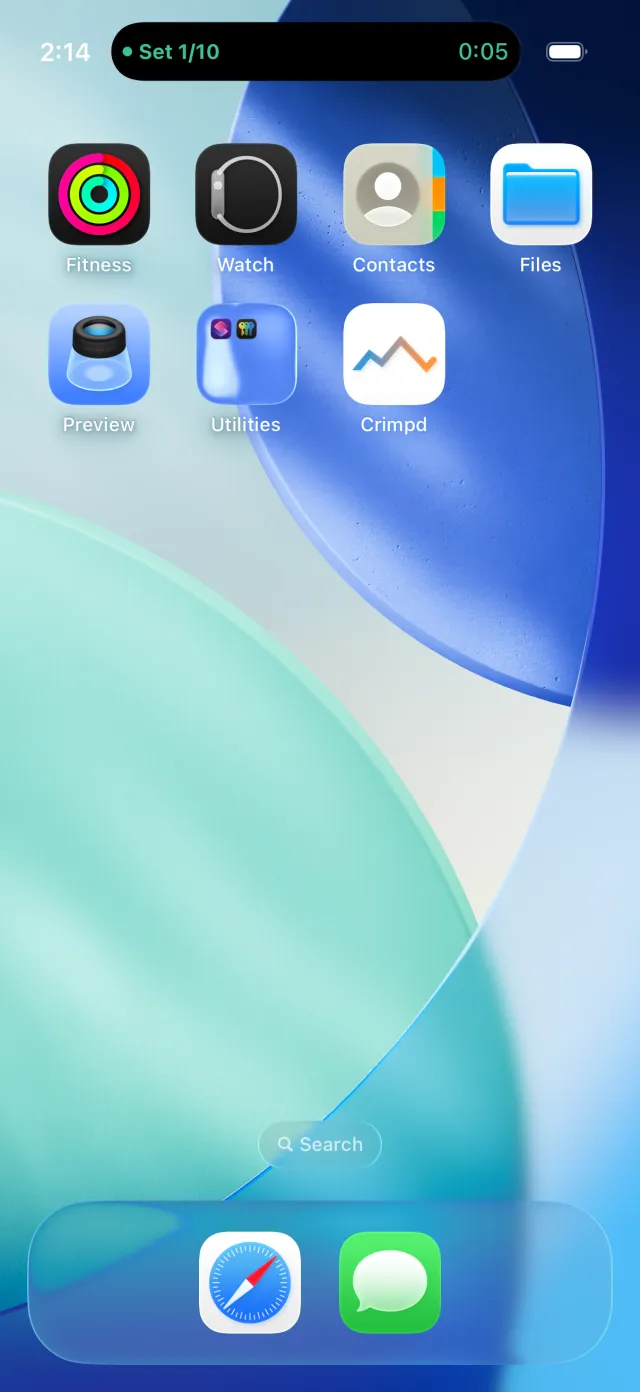
Press and hold the Dynamic Island to see the exercise, current phase, and next interval.
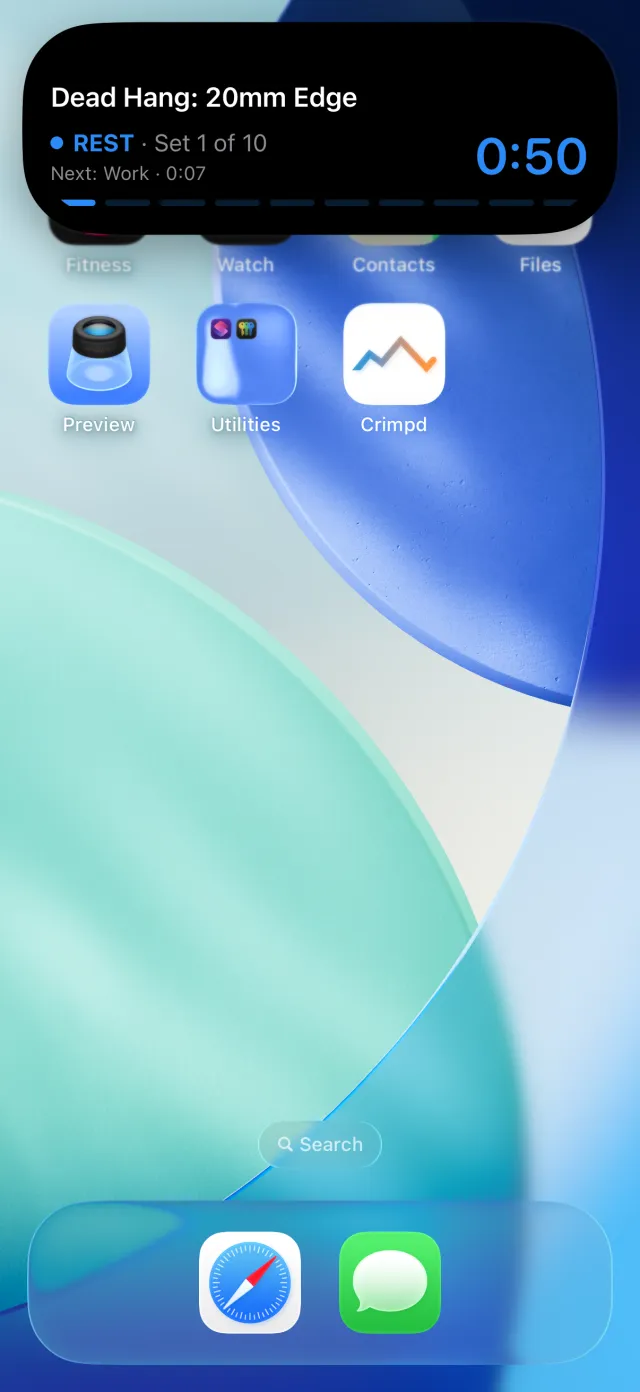
The countdown keeps ticking even when your phone puts Crimpd to sleep in the background. If the card shows "Open Crimpd to resume", the phase information could not be refreshed — open the app to bring it up to date. Your timer itself is unaffected.
To turn Live Activities off for Crimpd, go to Settings → Crimpd → and disable Live Activities.
Android Users
When you start a workout timer, Crimpd shows an ongoing notification with a live countdown. On Android 13 or later, Crimpd asks for notification permission the first time you start a timer — allow it to see the live timer. If you decline, the timer and its audio cues still work; only the notification is skipped.
- Notification shade — the exercise name, phase cue, set counter, and a countdown that keeps ticking on its own.
- Lock screen — the same card, if your phone shows notification content on the lock screen (see the FAQ below).
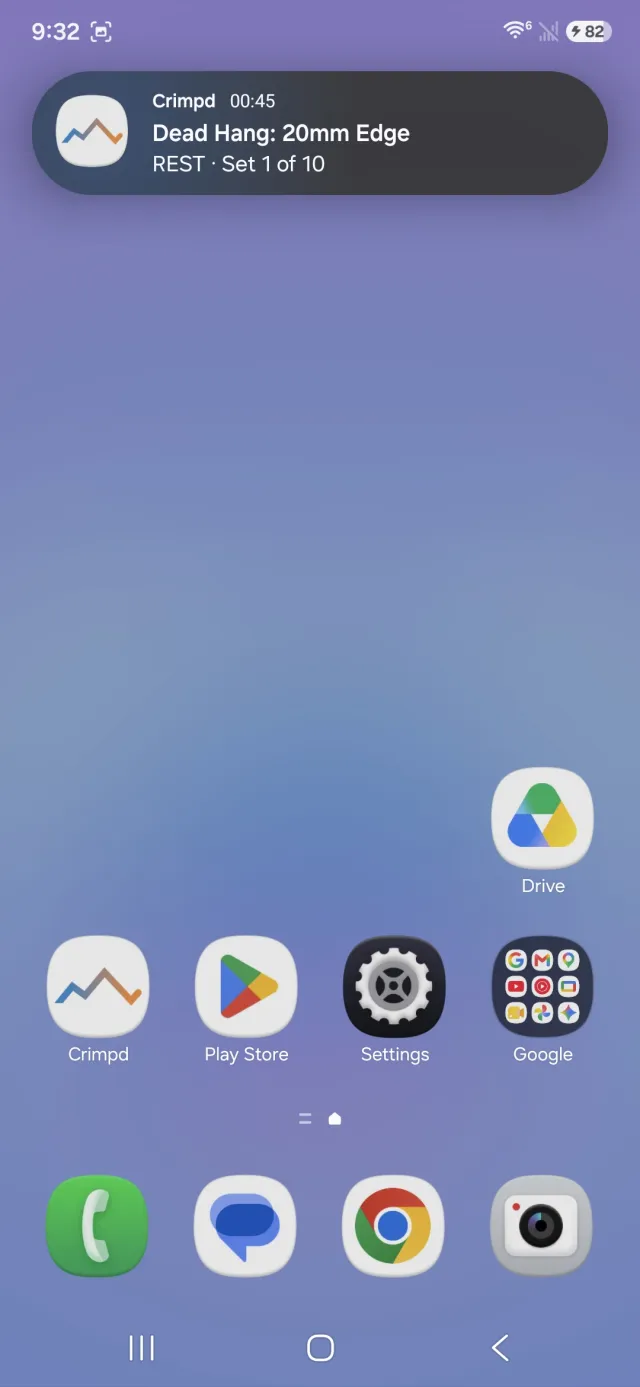
On the lock screen, the timer card's appearance depends on your phone and notification settings. This example is from Samsung One UI.
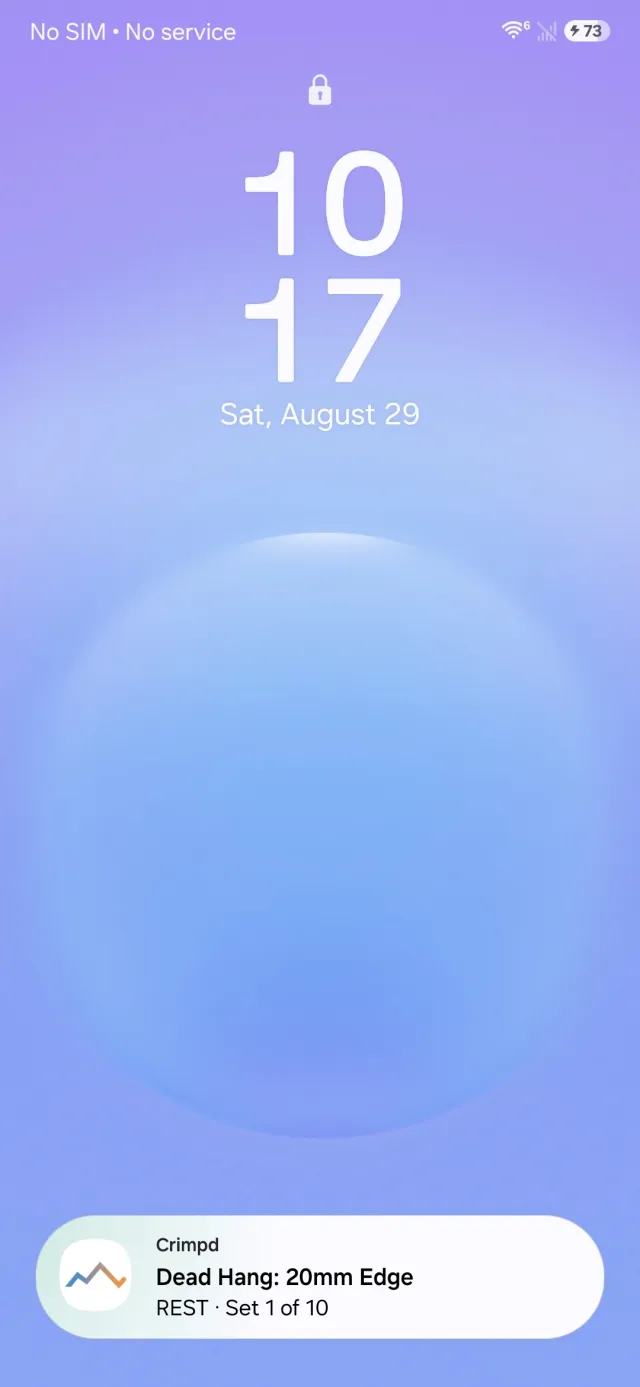
Swiping the notification away hides it for the rest of the current timer. Your next timer brings it back.
Status bar chip (Android 16)
On recent Android 16 builds, the live timer is a Live Update: it gets a chip in the status bar with a ticking countdown, and priority placement on the lock screen. Tap the chip to expand the full card.
Note: Device makers roll out Live Update support on their own schedules. Google Pixel phones on current Android 16 releases show the chip natively. Samsung phones on One UI 8.x do not show status chips for third-party apps yet — Samsung has announced broader support for a future One UI release. On Samsung, the live timer still appears at the top of your notification shade.
Frequently Asked Questions
My lock screen shows only a small icon, not the timer card. Why?
Some phones show notifications on the lock screen as icons only. On Samsung phones, go to Settings → Notifications → Lock screen notifications and change the style from Icons only to Cards to see the full timer card.
Does the live timer drain my battery?
No. The countdown is drawn by the operating system, not by the app. Crimpd only sends an update when the phase changes — for example from work to rest.
The countdown reached zero but the card still shows the old phase.
The operating system paused Crimpd in the background before it could refresh the card. Open the app to bring the display up to date. Your timer, audio cues, and logged workout are unaffected.
I dismissed the notification on Android. How do I get it back?
A dismissed live timer stays hidden for the rest of that timer. Start your next timer and the notification returns. This follows Android's guidance: an app should not re-post a notification you dismissed.
Can I pause or skip phases from the lock screen?
Not yet. The live timer is currently display-only. Open the app to pause, resume, or skip.
I'm on Samsung and want the status bar chip now.
Samsung gates third-party Live Updates behind a developer setting on One UI 8.x. If you are comfortable with developer options: enable Developer options, then turn on Live notifications for all apps. This is optional — without it, the live timer still works from the notification shade.